Post Preview shows you exactly how your captioned video will look as a TikTok, Instagram Reel, or YouTube Short — the feed-thumbnail crop and the caption safe-zones — before you publish. Drop in a vertical video, switch between platforms, and see your captions rendered behind the real platform interface so nothing important gets covered after you post.
Quick answer: To see what your video will look like before posting on TikTok, Instagram Reels, or YouTube Shorts, run it through a safe-zone checker — a tool that overlays each platform’s real interface (the username, caption, sound row, and the right-side like / comment / share buttons) on top of your video so you can confirm your captions and hook sit in the visible “safe zone” and are not covered. Post Preview does this free, in the browser, with no sign-up: drop in the clip, switch between TikTok, Reels, and Shorts, and reposition captions if anything collides before you publish.
The problem Post Preview solves
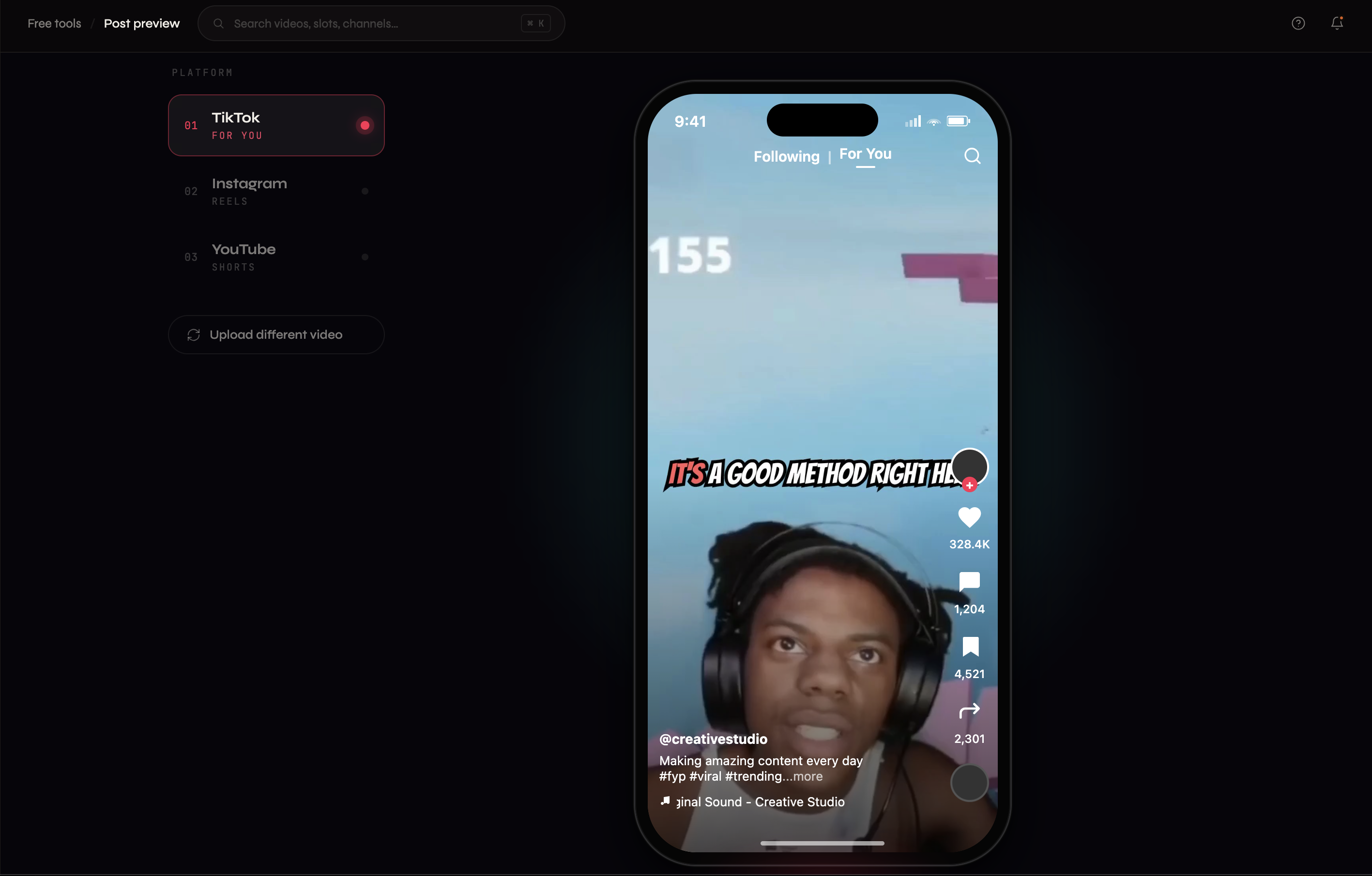
You burn captions into a video, it looks perfect in your editor, you upload it to TikTok — and the bottom line of every caption is sitting behind the username and the “Add comment” bar. The right edge of your text is under the like and share buttons. The hook you wrote got cropped out of the feed thumbnail.
None of that is visible in a normal video player, because the player does not draw TikTok’s interface on top of your video. The platform UI only appears once the clip is live. By then the fix is: delete the post, re-edit the caption position, re-export, re-upload, and lose the early engagement window.
Post Preview removes that loop. It draws the actual platform chrome over your video before you publish, so you catch the collision while it is still cheap to fix.
How it works
- Open Post Preview and drop in your vertical video (the captioned export, or the clip you are about to caption).
- Pick a platform: TikTok, Instagram Reels, or YouTube Shorts.
- The video renders with that platform’s real interface overlaid — username, caption row, audio attribution, action buttons, and progress bar.
- Toggle the feed-thumbnail view to see how the profile grid and feed crop your frame.
- If a caption collides with UI or the hook falls outside the thumbnail crop, reposition the captions and re-check. When it is clean on all three platforms, publish with confidence.
It is free, runs in the browser, needs no sign-up, and adds no watermark.
Caption safe-zones by platform
Each platform places its interface differently, so a caption that is safe on one surface can be covered on another. Post Preview lets you check all three on the same upload.
- TikTok — the right-side action rail (profile, like, comment, bookmark, share, sound) covers the right edge; the username, caption, and “Add comment” bar cover the bottom band. Keep captions centered and clear of the lower third and the far-right column.
- Instagram Reels — a bottom row holds the username, caption, and audio title; right-side buttons mirror TikTok’s rail. The safe area is the upper and central portion of the frame.
- YouTube Shorts — adds a bottom title and channel/subscribe row plus right-side controls, so the unsafe bottom band is typically taller than on TikTok. Center-frame captions are safest.
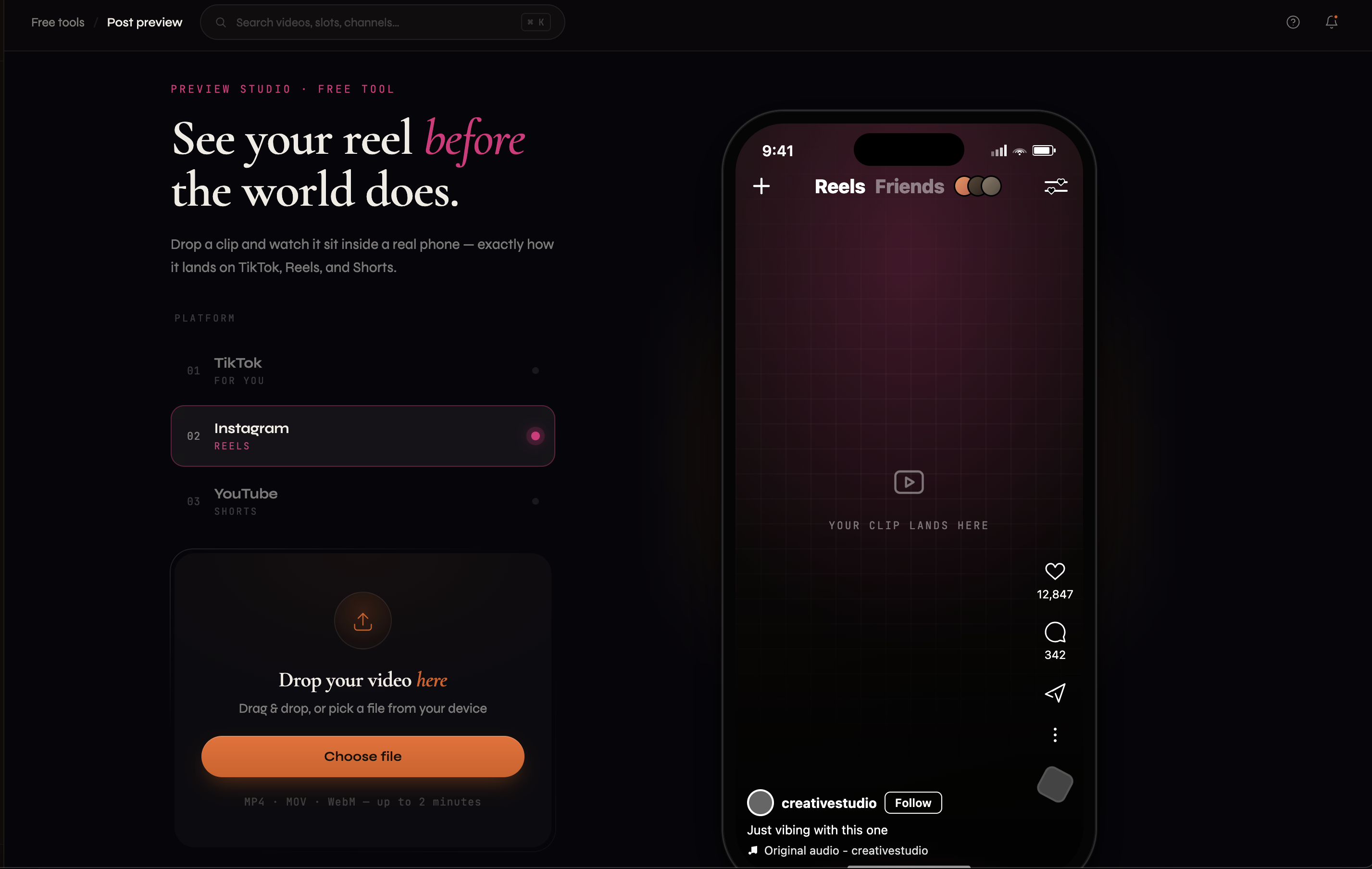
Because the exact overlay shifts with app updates and device size, Post Preview renders the current interface rather than asking you to memorize fixed margins.
When to use it
Use Post Preview on every clip before it goes out — especially when you are cross-posting the same captioned video to TikTok, Reels, and Shorts at once, since one caption position has to survive three different interfaces and three different thumbnail crops. It is the last check between “captioned” and “published.”
Related guides
- Add captions to a video — free, no sign-up: The caption generator Post Preview is built to pair with — burn word-level captions into any clip, then check the safe zones here.
- Edit captions on Instagram Reels: How to adjust caption timing and placement for Reels specifically.
- Closed captions on Instagram Reels: The difference between burned-in captions and platform closed captions, and when each survives a re-upload.
- Free CapCut alternatives for auto-captions: How the free caption tools compare after CapCut paywalled auto-captions.